Currently, localtranslate is only offered as a flatpak. You can find it on Flathub.
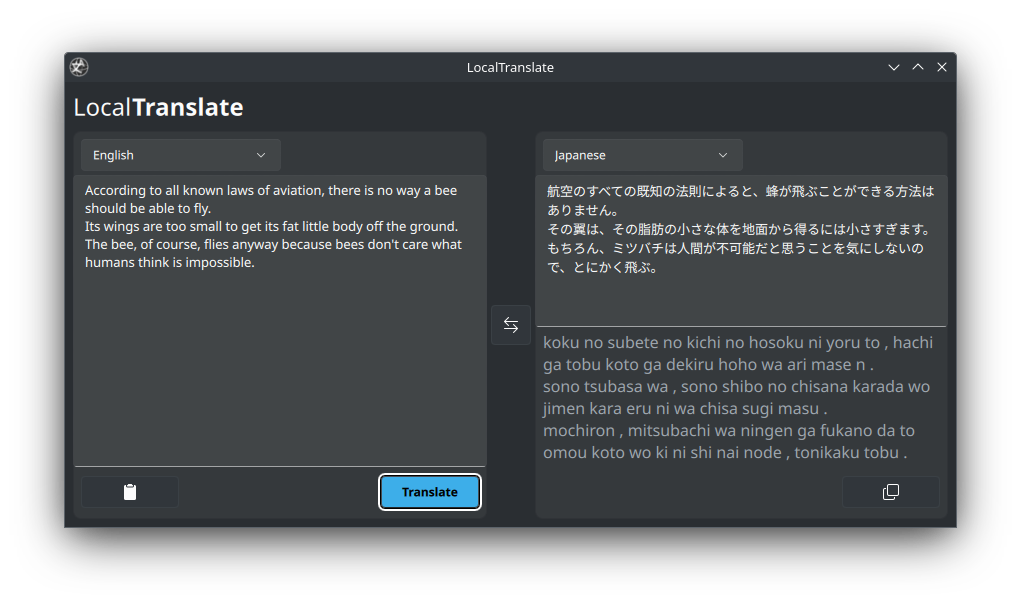
- LocalTranslate in landscape
Navigation
LocalTranslate has two sections. Input and Result sections.
- The section on the left (top if the app is in portrait) is for input.
- The section on the right (bottom if the app is in portrait) is for show results.
- The dropdown in the input section is used to select the source language and the dropdown in the results section is used to select the target language (The languages are listed in alphabetical order).
- The Swap button in the middle can be used to swap the source and target languages.
- There is a paste button at the bottom of the input section using which copied text can be pasted into the input.
- There is a copy button at the bottom of the result section using which result can be copied to the clipboard.
- At the right bottom of the input section you can find a button that says
Translateand of course it performs the translation.
Basic Usage
- Select the source and target languages using the dropdowns from input and result sections.
- Write or paste the text into the input section.
- Click on the
Translatebutton (Ctrl+Enter / Ctrl+Return can be used too). - The translation appears in the results section.
If the translation model is not available you might see an error in the result section instead.
- Ex: Language pair uken not available
- All the languages that use a script that's not latin will show transliteration in english. Like how the image above has transliteration for Japanese.
- Swapping languages will swap the source and target languages and the text in result section will be moved to input and result section will be cleared.
Keybindings
Ctrl+Enter/Ctrl+Return- This will translate the textCtrl+D- This will clear all the text fields and returns the focus to the input field
CLI-mode
LocalTranslate comes with CLI-mode, which can be used to do quick translations without launching the GUI. Simply executing Localtranslate with command line args makes the app switch to CLI-mode.
Example usage:
localtranslate --from=en --to=de "Good Morning"you can also pipe text into localtranslate via a pipe
echo -n "Good Morning" | localtranslate --from=en --to=deIf you are using the flatpak…
flatpak run dev.ters.LocalTranslate --from=en --to=de "Good Morning"You can also get the list of supported languages by using --list-languages option
Below are the options available
Options:
  -h, --help        Displays help on commandline options.
  --help-all        Displays help, including generic Qt options.
  -v, --version     Displays version information.
  --from <from>     Source language code.
  --to <to>         Target language code.
  --list-languages  List available languages.